Important Notes
Creating transfer data saves your game progress to the server as it is at the time you create it. Please note that this data is not updated automatically.
The transfer feature can also be used to create backups. Even when you are not changing devices, we recommend creating transfer data regularly to protect your progress.
Transfer data can currently be created once every 3 days. We are monitoring the impact on our servers and will consider reducing this interval if it can be done safely. We apologize for the inconvenience and appreciate your understanding.
Buying and selling game data are prohibited by the Terms of Service.
This feature is intended for changing devices and creating backup data in case your device is damaged or lost, or your game data is unexpectedly lost. Using it for other purposes may constitute prohibited conduct under the Terms of Service. Please do not use this feature for other purposes.
Paid items, such as Rainbow Crystals, are tied to your game account. When changing devices, items used on the old device after you create the transfer data will not be carried over to the new device. Please refrain from playing on the old device after creating the transfer data.
Uninstall the app from the old device only after you have confirmed that your data was transferred correctly to the new device. If the transfer data was not successfully created due to a connection error or similar issue, and you uninstall the app from the old device, we will be unable to recover your data.
On Your Old Device
- Make sure Rum’s Spring & Dungeon is updated to the latest version. If the download button on the store page says Open or Play, you have the latest version.
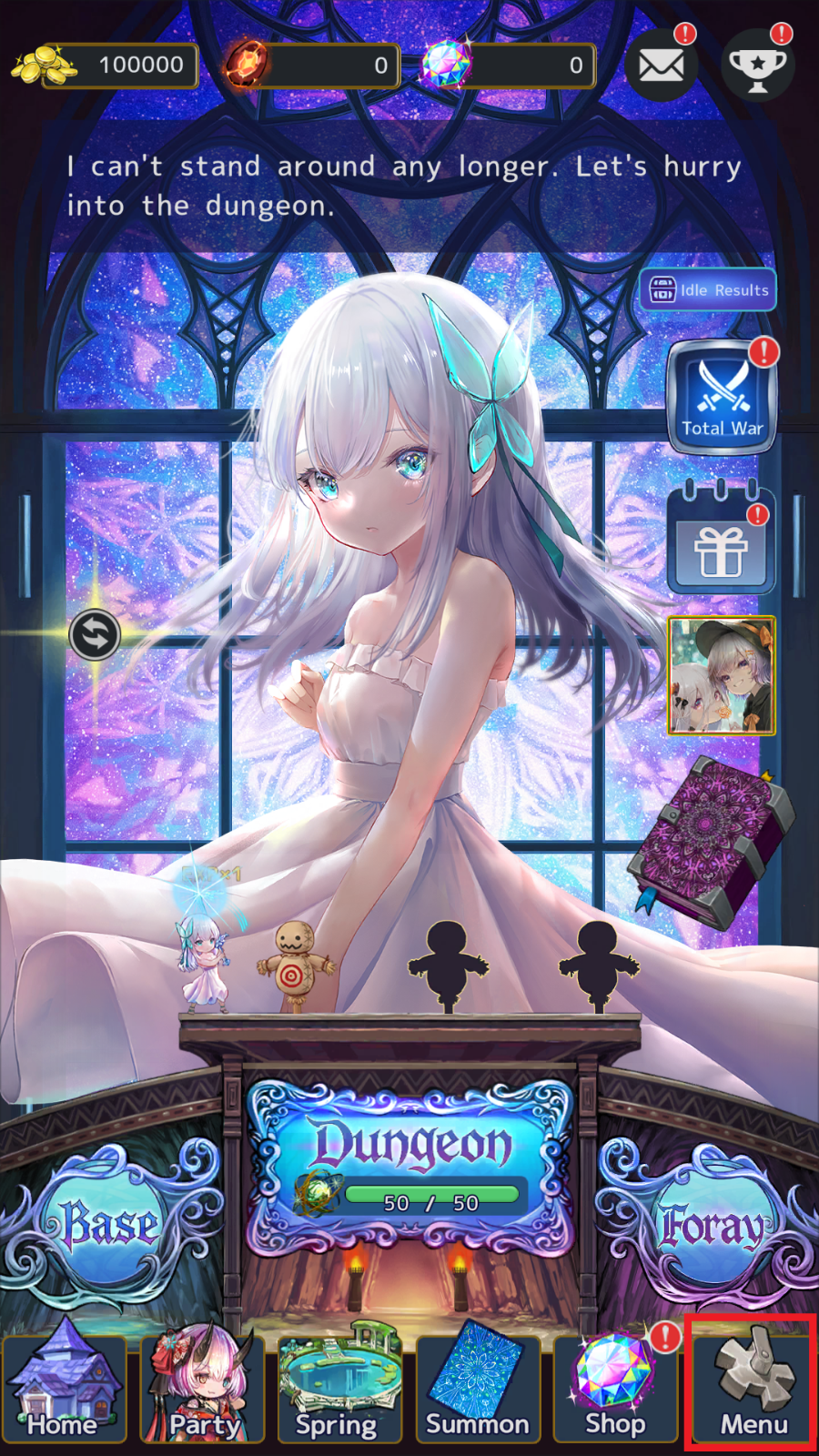
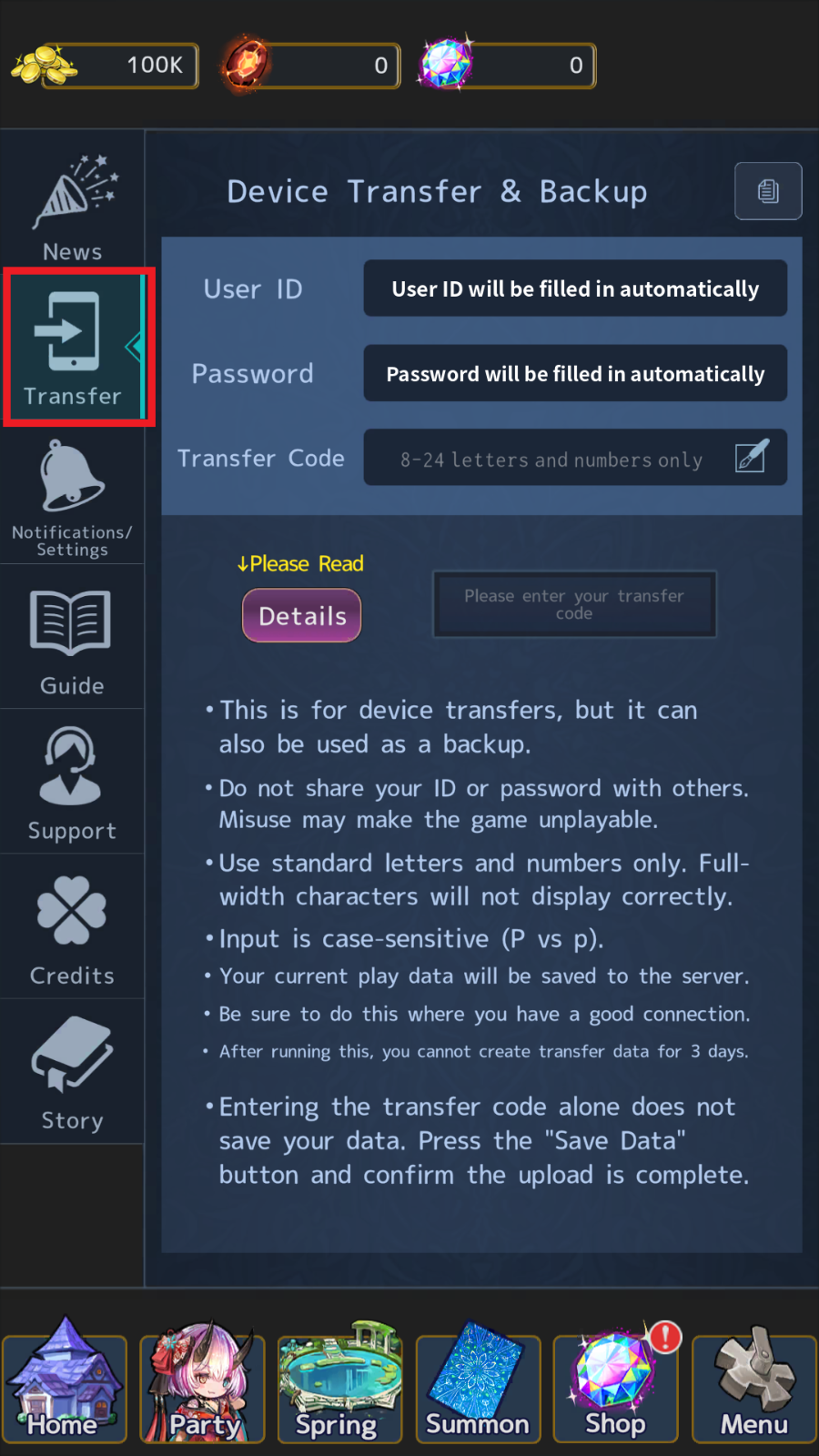
- Open the Transfer screen from Menu.
- Enter a Transfer Code using 8–24 standard (half-width) letters and numbers. You may reuse the same code. Uppercase and lowercase letters are treated as different characters.
- Tap Copy to Clipboard and keep your User ID, Password, and Transfer Code safe in a notes app or similar place. Be sure to take a screenshot as well.
User IDs and passwords are long, so we recommend copying and pasting them from your notes when you transfer your data.
- Read the on-screen notes carefully, then tap Save Data.
- Do not close the app until the upload is complete. Please wait on this screen. Your transfer data has been created once the upload-complete message appears.
- Close the app on your old device before opening it on your new device. If you start the transfer without closing the old app, you may see a warning about being logged in on multiple devices at the same time.
On Your New Device
- Install Rum’s Spring & Dungeon from the store. If it is already installed, make sure it is updated to the latest version.
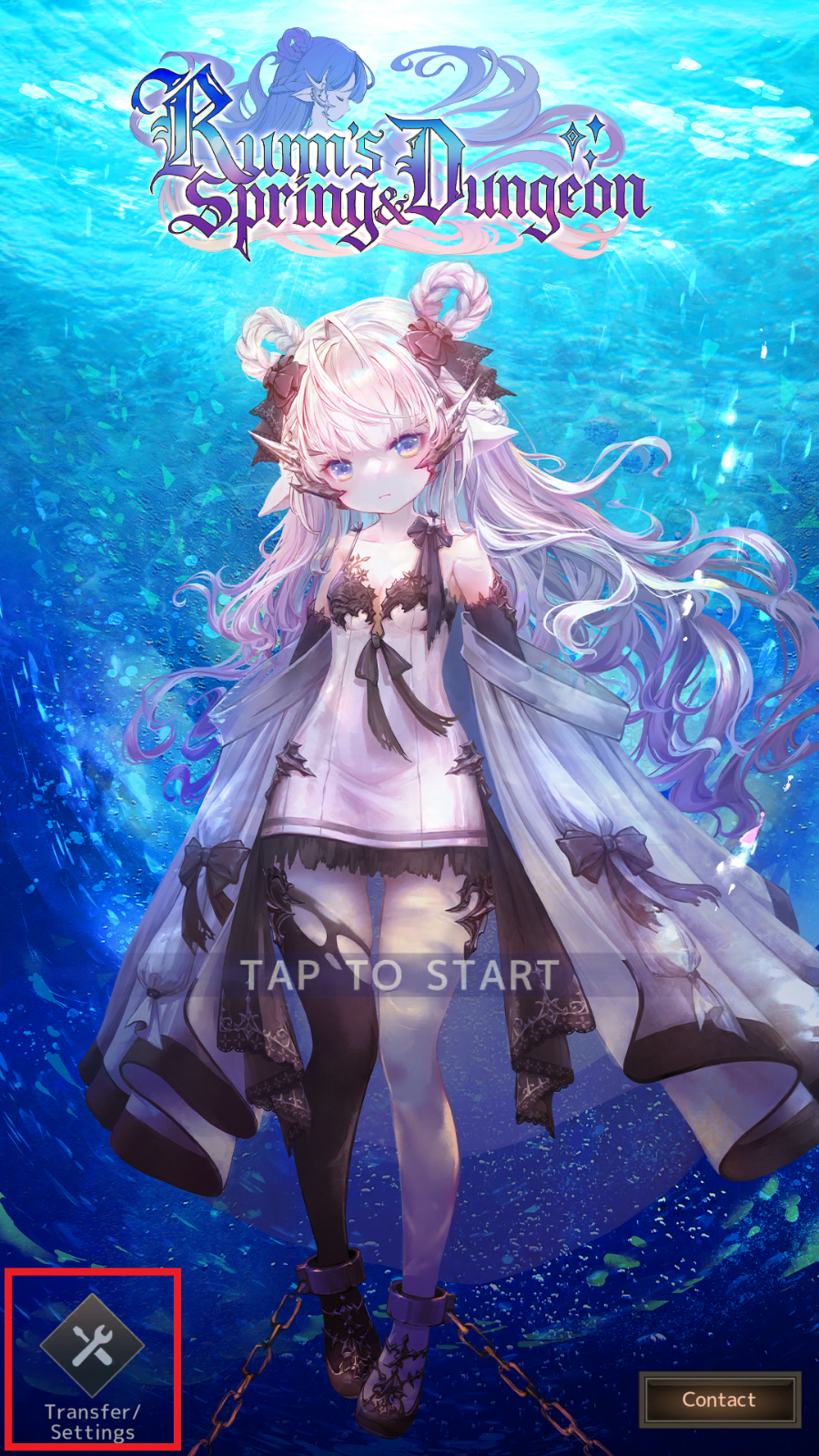
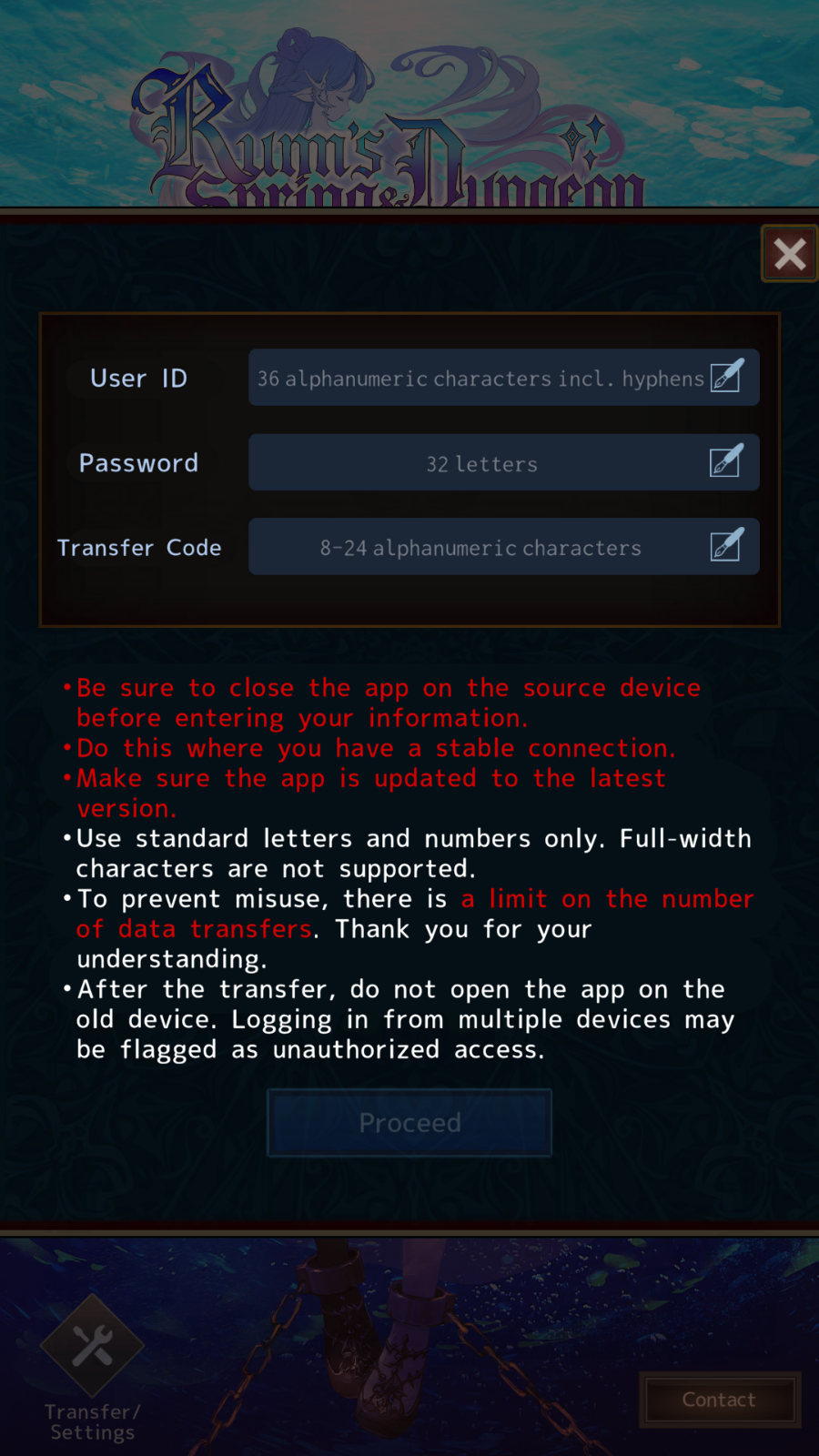
- Open Transfer from the bottom-left of the title screen, then enter your User ID, Password, and Transfer Code.
- Read the on-screen notes carefully, then tap Proceed.
- Do not close the app until your data has finished downloading. Please wait on this screen. The transfer is complete once the transfer-complete message appears.